See your day
Sign in with a code from the Core16 app on your phone. How to get a code
You'll be signed out automatically after 12 hours. On a shared computer, sign out when you're done.
How to get a code
-
Tap your initials
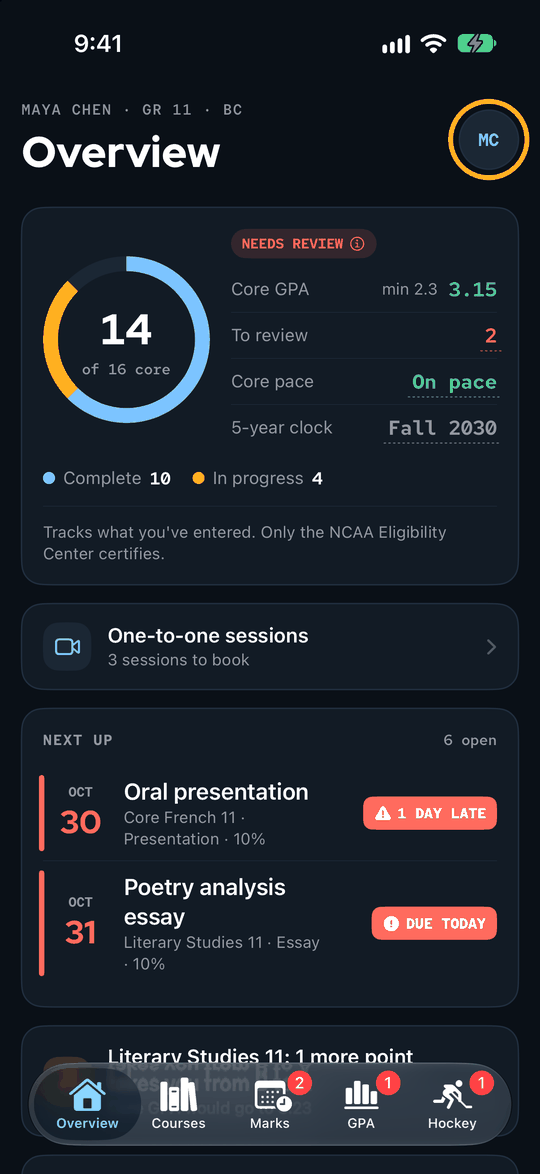
Open Core16 on your phone. On Overview, tap the circle with your initials at the top right.
-
Tap Core16 advisor
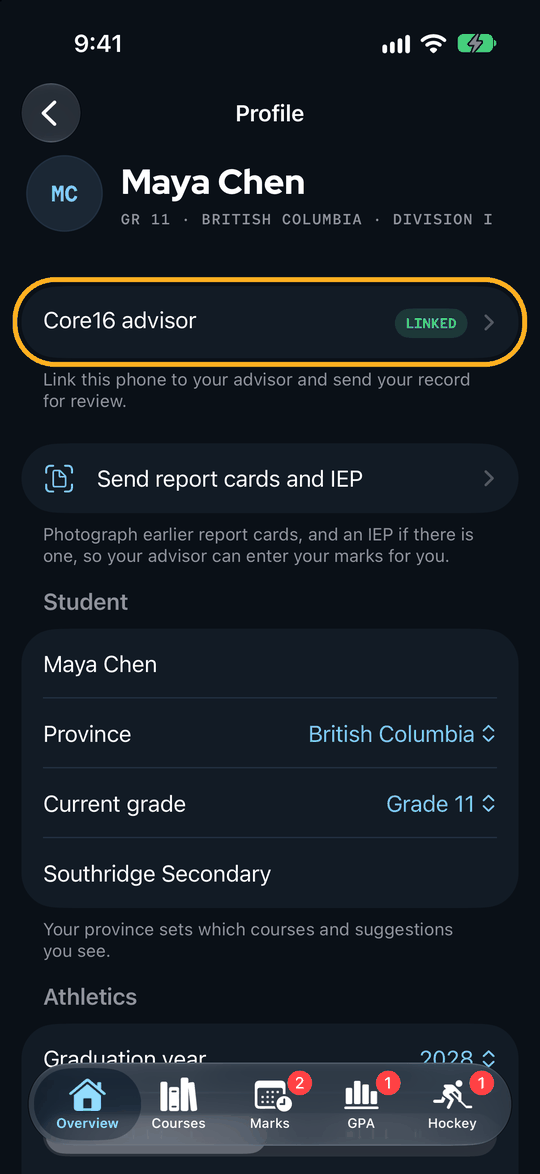
That opens Profile. Core16 advisor is the first row under your name.
-
Tap Get a sign-in code
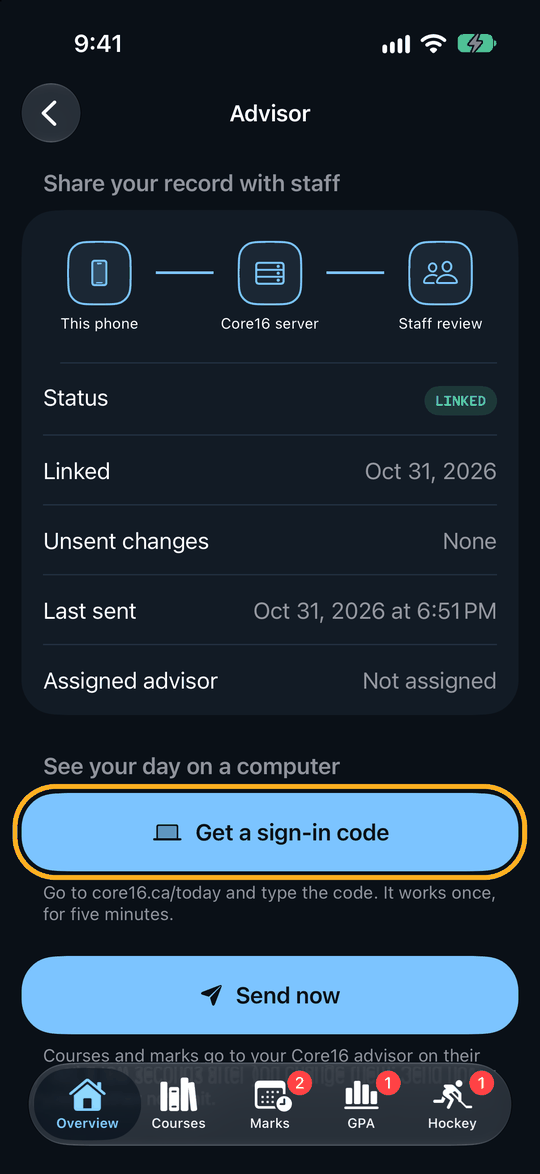
It's under See your day on a computer. Scroll down if you don't see it.
-
Type the code
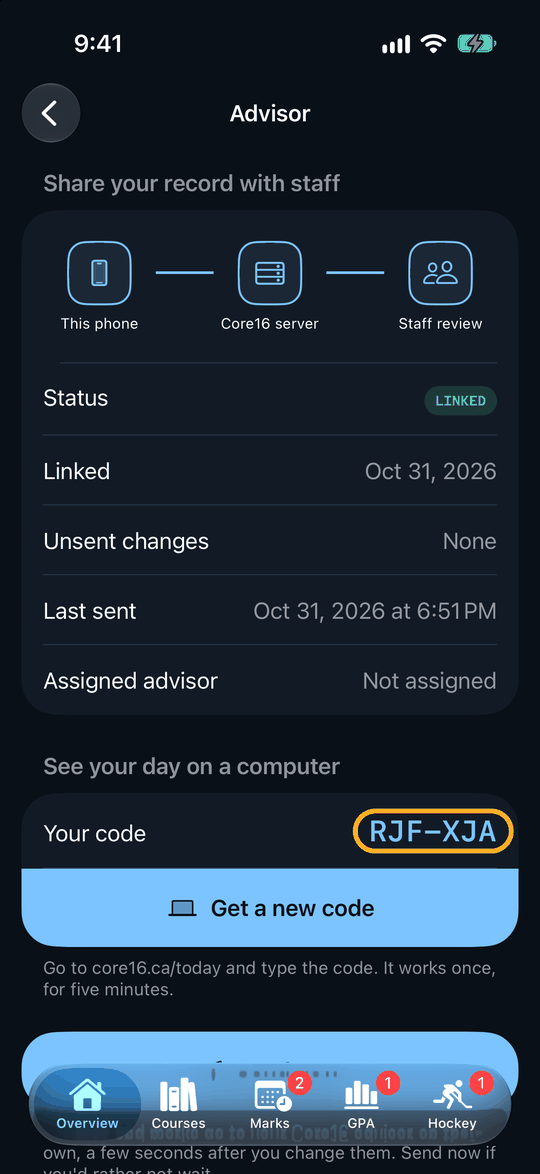
Your code appears on the phone. Type it in the box on this page and choose Sign in.
If it doesn't work
- There's no Get a sign-in code button
- Your phone isn't linked to your Core16 advisor yet, so the row in step 2 says Not linked. Ask your advisor for a link code and enter it on the same screen. If it says Linked and the button still isn't there, update the Core16 app.
- The code didn't work
- A code lasts five minutes and works once, and only your newest code works. Tap Get a new code and type that one.